


(Quest 2) Controller Layout:
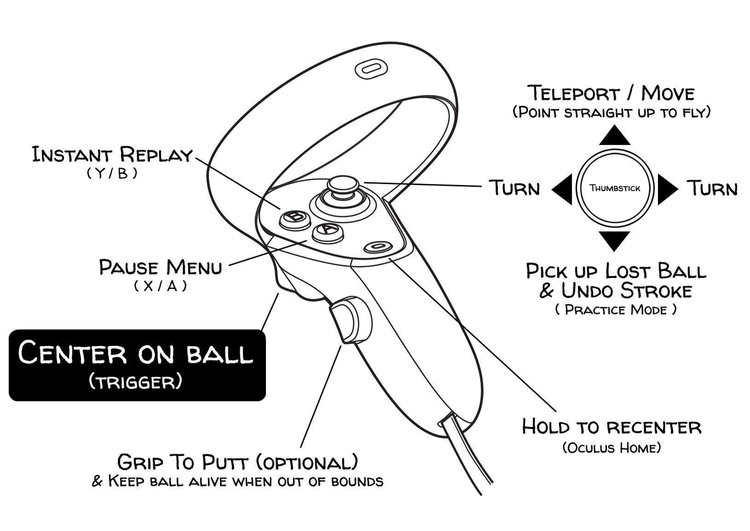
Quest 3 Controller Layout:
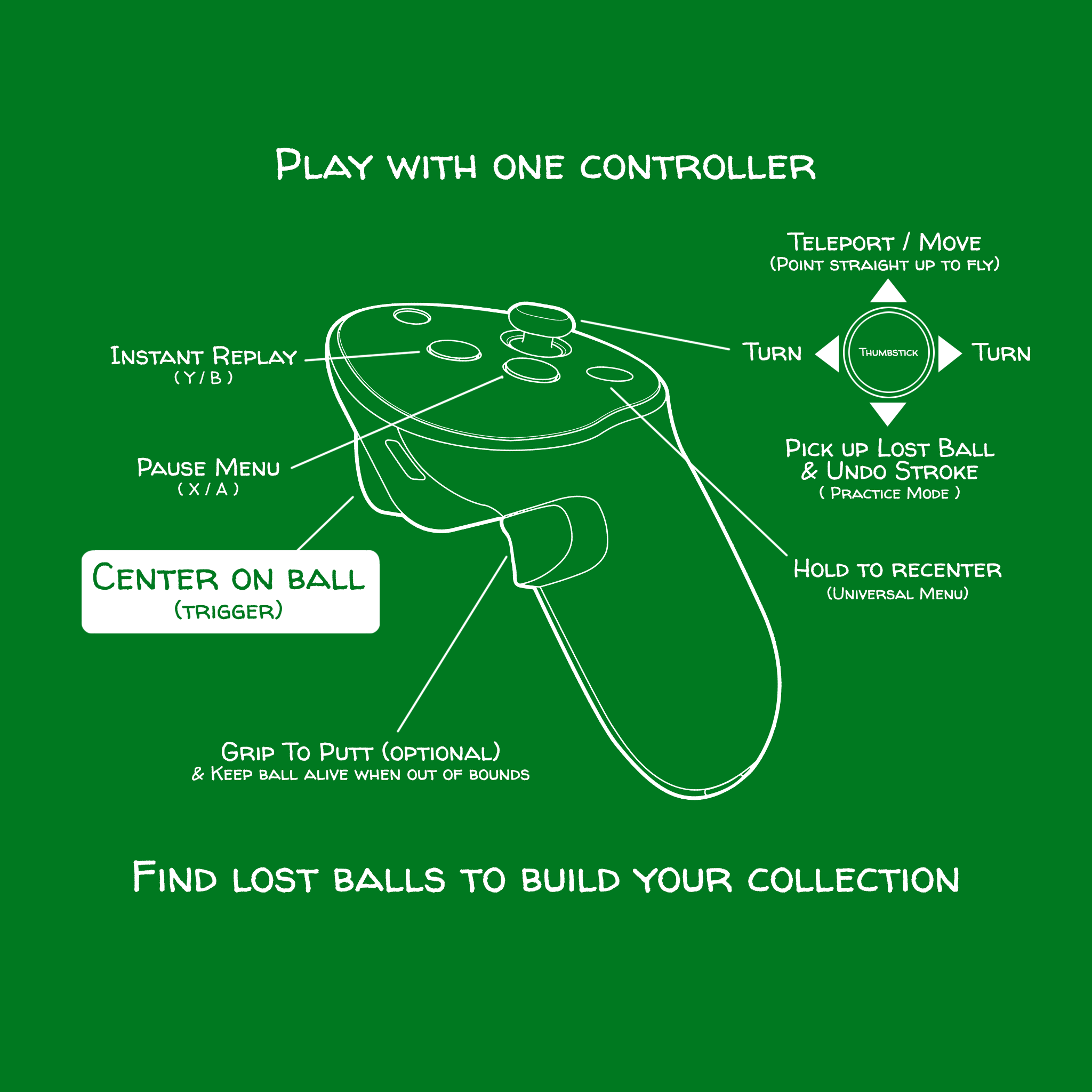
Quest 1 Sunset
-
Our Quest 1 devices do not support DLC beyond Journey to the Center of the Earth, and as of December 2023, Quest 1 users have been locked into multiplayer with other Quest 1 devices only. This is due to Oculus SDK updates that make it technically impossible to support the device beyond what we have done. Read about it here: https://www.mightycoconut.com/quest1
Quest App Sharing - Multiplayer Issues
-
Quest App Sharing has recently been updated to allow DLC access across accounts; however, there can still persist some issues with it. We recommend users in this boat to create a new in-game Walkabout profile for the Secondary account to use, and then having the Primary account signed into both headsets. This will allow both of you to launch and play the game simultaneously.
Quest Microphone and Storage Permissions - Game Crash
-
Particularly for Quest users, it’s important to verify that your Microphone settings are enabled in your Game App Permissions on the device setting side. If users do not wish to utilize our in-game microphone, they can toggle their Mute box ON from the scorecard or at the Welcome Island Shack.
Meta Darkness - Poor Visibility
-
We recommend trying to adjust your headset's contrast settings, as many players have found this approach quite helpful for enhancing the in-game lighting experience. When it comes to adjusting contrast on a Meta Quest headset, you'll want to navigate through a few specific menu options. Specifically, go to Settings > Accessibility > Vision and locate the Contrast slider. This slider allows you to fine-tune the visual contrast to your preference.

