




CocoVision Camera
In partnership with LIV—the makers of creator kits for VR—our team is happy to unveil our latest addition to Walkabout Mini Golf for players on LIV-supported Quest, Rift, and Steam:
-
Quick still and video capture (launched easily from the Wristwatch), saved right to your gallery!
-
Take selfies to show off your avatar!
-
Capture dramatic replays of your favorite shots!
-
Gather your friends in multiplayer to create your own sitcoms or short films!
NOTE: CocoVision Camera is currently exclusive to Quest, Rift, and Steam.
NOTE: CocoVision Camera is experimental.
Players may experience issues with performance while capturing and may encounter bugged behavior.
It's Simple
To access and use the camera:
-
Click the camera button on your Wristwatch to open the camera.
-
For a snapshot, click the "Snapshot" camera icon and strike a pose before the countdown finishes. Players can choose between a user-facing and forward-facing camera orientation.
-
For a video, click the red "Record" button to start recording. Do something fun, then click the "Record" button again to end the recording.
For finding and/or exporting your media:
1) Find your photo/video in the Gallery App of your headset to share on social media. NOTE: For videos to be made available in the Meta Horizons App or meta.com/gallery, you will have to click on the “Sync” button on the video’s thumbnail in the Gallery.
or
2) Import into your video production app of choice by downloading through the mobile app or via USB cable (/Movies/WMG_Album or /Photos/WMG_Album).
On PCVR, the video will save to /Videos/WMG_Album and snapshots save to /Pictures/WMG_Album
It's Advanced
In addition to flipping the camera from user-facing to forward-facing, advanced controls allow a larger tool kit for more sophisticated shots and positions.
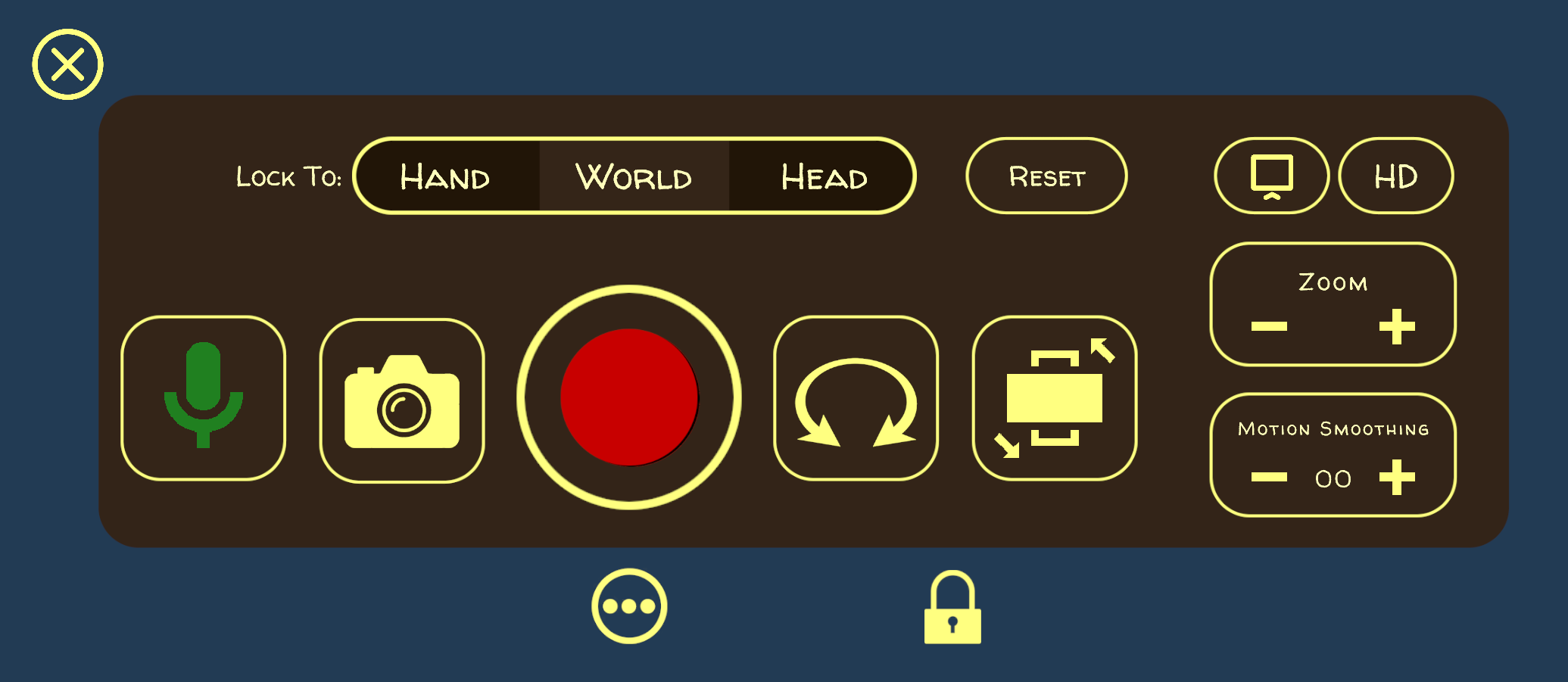
Click the "..." icon beneath the camera to see the advanced controls.
With the Advanced settings, players can:
-
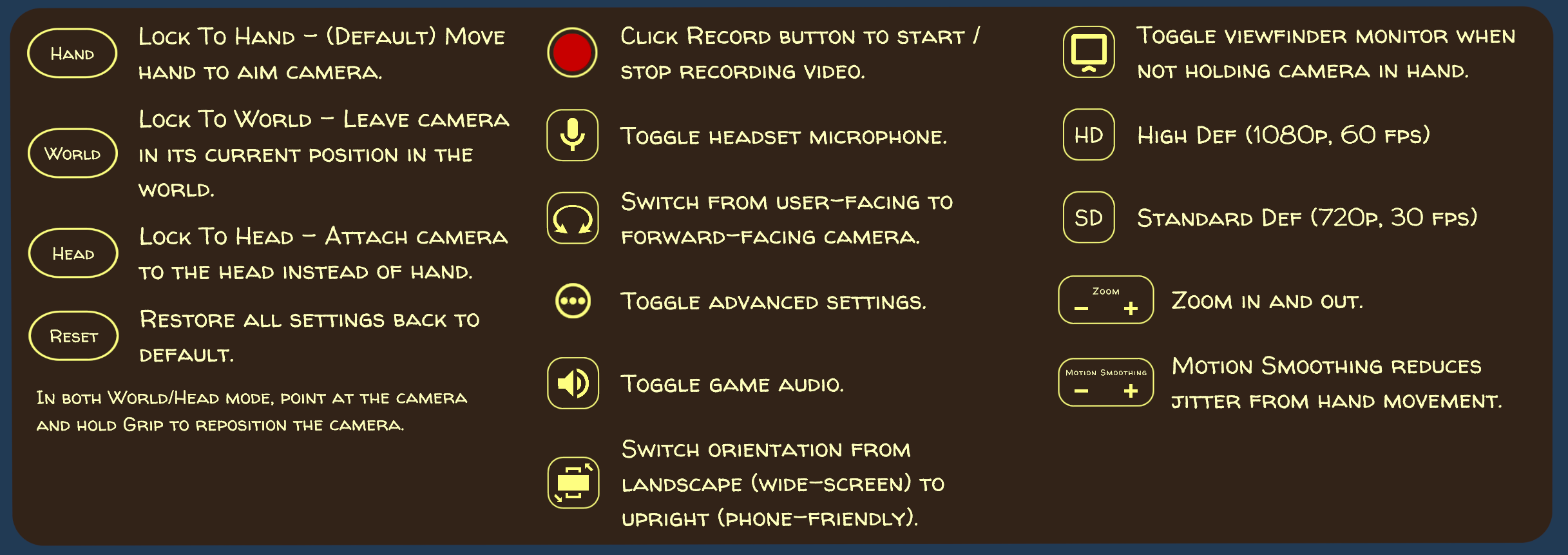
Mute the microphone if you don't want your voice to come through. For all other audio, balance the levels using the in-game Audio Option menu to get the exact mix you want.
-
By default, you're holding the camera in your hand, but you can lock it into position relative to your position in the world or attach it to your head to free up your hand for navigation and gameplay.
-
While not held in hand, point at the camera and hold the Grip button to drag the camera into the position of your preference.
-
Turn on the viewfinder on your wrist to see the camera view even when not holding the camera.
-
Flip the orient to portrait mode for phone-friendly sharing.
-
Zoom in and out to get just the right shot.
-
Increase the Motion Smoothing to reduce any jitter from hand/head movement or turn it off if you want your footage raw.
Note: Variable recording quality. 720p Standard Def and 1080p High Def.
On PCVR, a 4K option is available.
One of our ambassadors, Kayaditi, has put together a great video guide for CocoVision:

